Official Guide / iPhone and iPad
Shadowrocket Getting Started
Import existing details → Global Routing → Connect → Verify → Troubleshoot. First establish a connection you can verify, then adjust your everyday traffic rules.
STEP 01 / Add Server · Subscribe
Add a Server or Import an Existing Subscription
First identify what information you have, then choose the right option. A complete subscription link retrieves a list of servers. A single server link, QR code, or set of details containing a protocol and port is generally used to add an individual server. A subscription link is not the same as a regular webpage URL, and its purpose can't be determined from the domain alone. If the source doesn't explain what to use, ask the provider of your existing service rather than guessing by switching Type repeatedly.
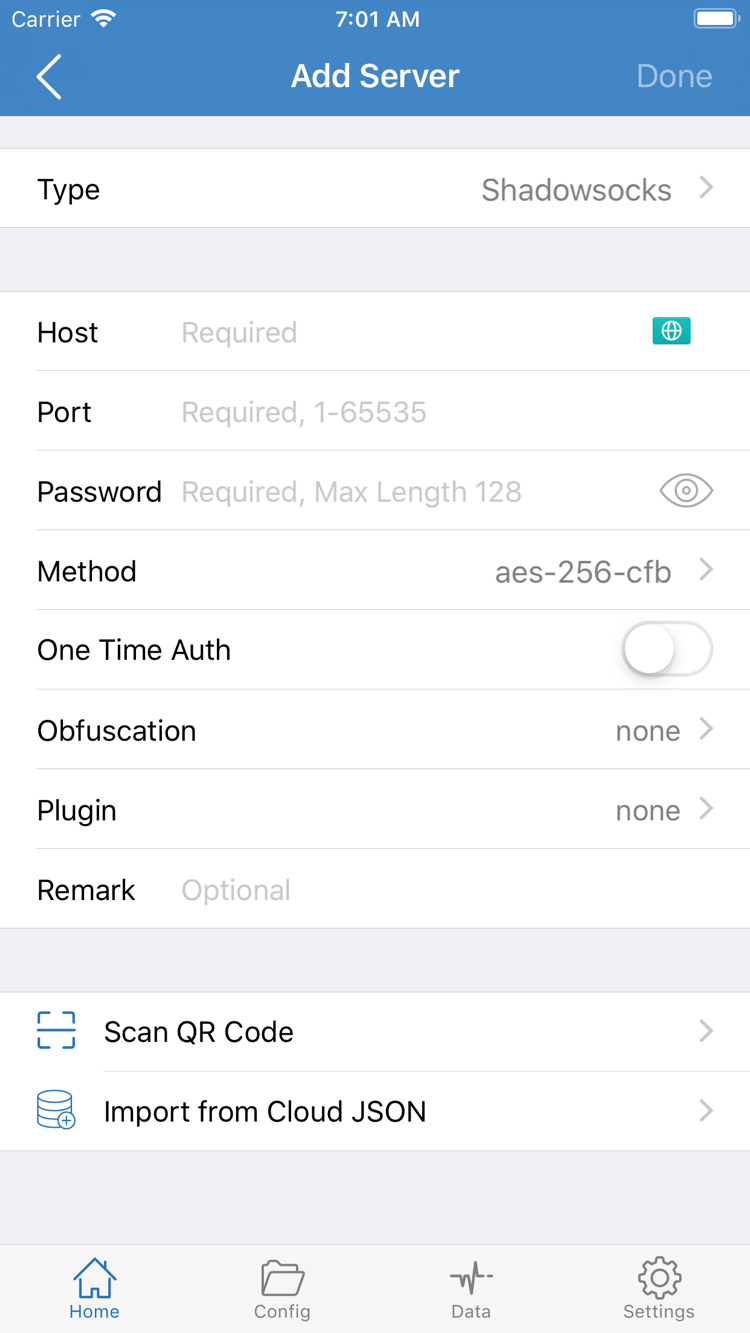
Add a Server Manually: Open Add Server from Home
Open Home and find Add Server in the SERVER section, or use the add option on the screen. In Add Server, tap Type and select the protocol that matches your existing details, then fill in the corresponding fields. Host, Port, Password, and Method in the screenshot are examples for a specific type. The form may differ when you change Type, so don't treat this combination of fields as a requirement for every protocol.
Enter the server address from your details in Host and the port in Port. Check Password and Method against the original details. Watch for leading or trailing spaces, full-width punctuation, and missing characters when copying; don't include explanatory text in the port field. If the selected protocol requires additional parameters, enter the corresponding values from your source. Compare everything once more before saving, then return to Home and confirm the new entry appears under SERVER.
Import a Subscription: Select Subscribe
If you already have a subscription link, select Subscribe under Type in Add Server, enter the complete link in the URL field, save, and wait for the result. Copy the entire link: query parameters may be required to identify the subscription. Subscription links are sensitive; don't include them in public screenshots or comments, or share them with people who don't need access. This step uses a link you already have; it does not involve finding or purchasing a service.
Saving a subscription entry and successfully retrieving its servers are two separate results. Return to Home, expand the relevant group, and confirm that server entries appear. If you see the subscription name but no servers, don't proceed to connection yet. Check whether your local network can reach the link, whether the link is complete, and whether the subscription is still valid. To update an existing Shadowrocket subscription later, use the update action on its entry and confirm the list refreshes. Don't add the same subscription repeatedly as a substitute for updating it.
If your existing details are provided as a QR code, use Scan QR Code in Add Server and grant camera access when prompted. Import from Cloud JSON is for files in the corresponding format, not a general way to import any subscription URL. You're ready to move on when SERVER contains a selectable server whose details match the information you have. For the difference between Subscribe and Config, see the glossary.
STEP 02 / Global Routing · Config
Choose a Global Routing Mode
Once your server list is ready, return to Home and open Global Routing. This setting determines how requests are handled overall; it doesn't add servers or correct an incorrect server password. The three modes are Config / Proxy / Direct. Before switching, decide whether you're testing a server or using existing rules.
| Mode | How requests are handled | When to use it |
|---|---|---|
| Config | Applies the rules and policies in the current configuration file. | Verify rule-based routing and use your everyday setup. |
| Proxy | Routes requests handled by the client through the proxy policy. | Temporarily rule out configuration rules when testing the selected server. |
| Direct | Connects directly to the destination without routing through a remote proxy server. | Check direct access or use it as a temporary comparison. |
To test an existing server for the first time, you can temporarily select Proxy to reduce the effect of configuration rules on the result. This does not guarantee access to every destination or replace checking your server details. After testing, switch to Config if you want different requests to follow different policies. Don't assume that the top-of-screen connection status means requests are using a proxy: in Direct mode, the remote server does not forward those requests.
Before Using Config, Check the Active Configuration File
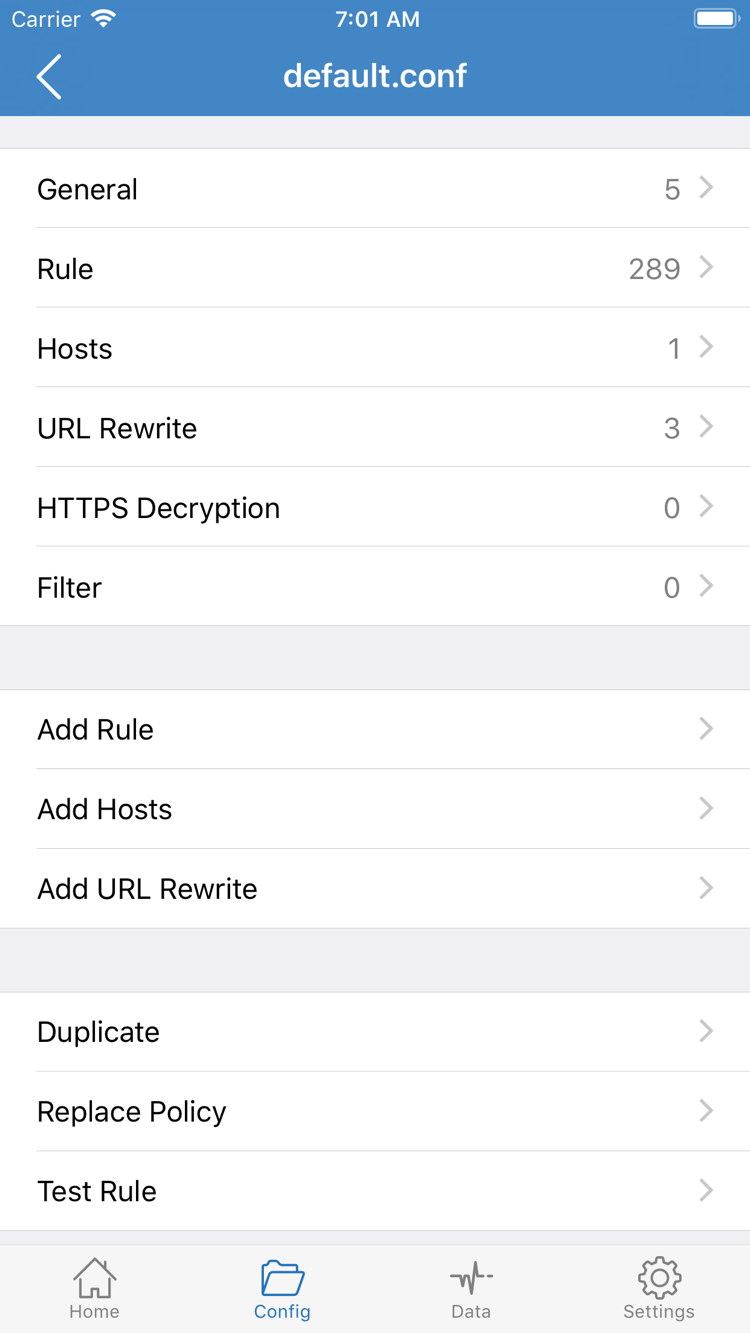
Open Config and check which configuration file is currently in use, not just whether a file appears in the list. A subscription usually provides a server list, while a configuration file contains rules and other settings; importing the former does not automatically give you the latter in a form that suits your needs. Open the configuration file to review sections such as General and Rule. The screenshot shows the editor and the Add Rule option. If you already have a working configuration, leave it unchanged during the first connection to avoid changing multiple settings at once.
PROXY, DIRECT, and REJECT in rules are policy keywords; don't confuse them with Proxy and Direct in Global Routing. For example, the snippet below uses PROXY for a matching example domain and DIRECT for other requests. It's only a syntax example, not a complete configuration to import for this tutorial. Whether traffic goes through a remote server depends on the current mode, the rule that matches, and the policy it selects. The presence of PROXY in a file alone isn't enough to tell you.
[Rule]
DOMAIN-SUFFIX,example.com,PROXY
FINAL,DIRECT
If you're unfamiliar with rule order, complete the connection and verification steps first, then read the Rules & Config reference. To compare the three modes in detail, see Routing Modes. For now, confirm that Global Routing on Home matches the purpose of your test and that Config has an active configuration file to use.
STEP 03 / Home · SERVER
Select a Server, Then Turn On the Connection
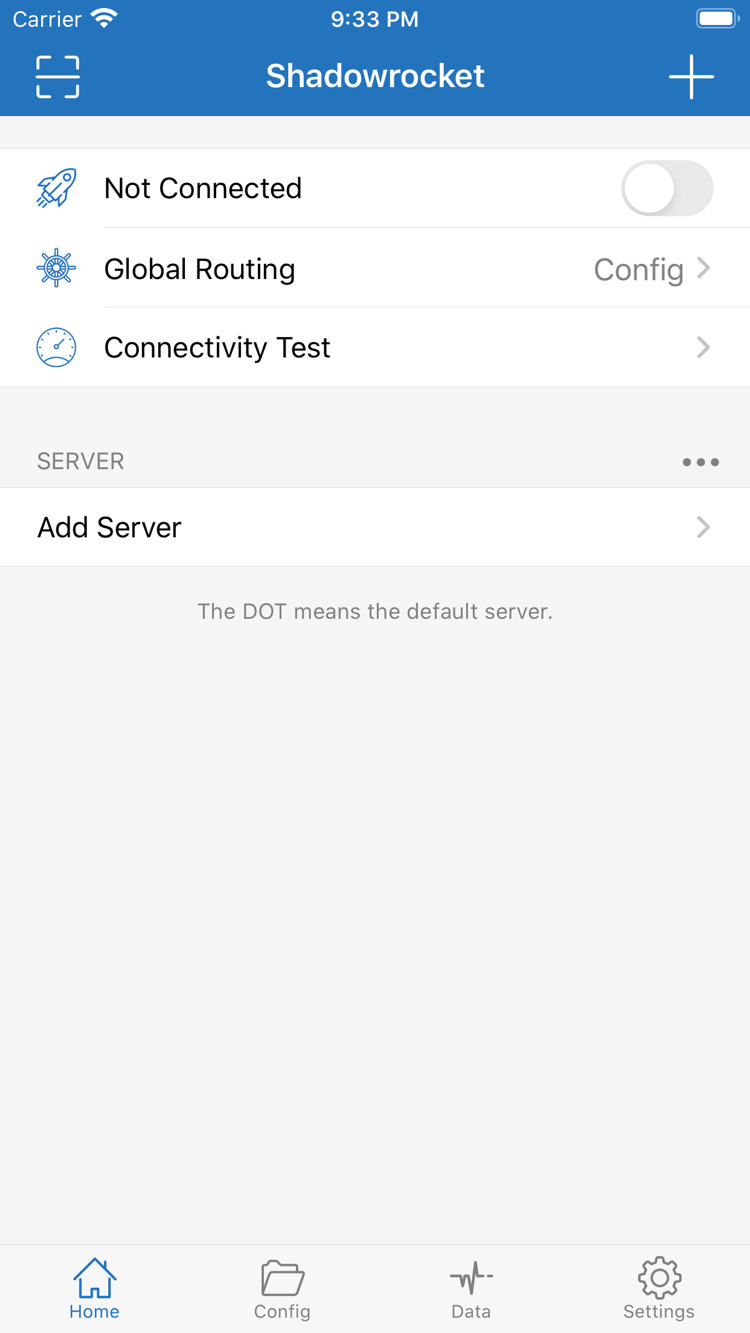
Return to Home, expand the group you just imported under SERVER, and select the server you want to use. Check the selection indicator beside the entry to confirm the default server has changed to the one you intend to use. Opening an entry's details is not the same as selecting it: viewing the edit screen doesn't confirm that the server is selected for this connection. If you have several servers, note the name you selected so you can refer to the same entry while troubleshooting.
After checking Global Routing, turn on the connection switch at the top of Home. Before connecting, the screen may show Not Connected. After turning it on, check whether the status changes and whether the switch stays on. Avoid toggling it rapidly; otherwise, it can be hard to tell whether the previous attempt is still processing or the new one has failed. If a system authorization prompt appears, respond to it before checking the result in the app.
First-Time Authorization: Allow VPN Configuration
The first time you connect, iOS may ask to let Shadowrocket add a VPN configuration. This authorization lets the client use a system network extension to handle traffic. It is not a purchase confirmation and does not mean the remote server has passed a test. Verify that the request is from Shadowrocket, then follow the system prompts to approve it. Your device may require a passcode or biometric authentication. When finished, return to Home and turn on the connection switch again if needed.
If you previously denied authorization, importing the subscription again won't restore the connection. Try connecting again and check for a system prompt. If the device is managed, connection restrictions are in place, or another VPN connection is active, also check the device settings and applicable management requirements. Don't delete another VPN configuration unless you know what it's for. The iPad layout may differ from the screenshot, but you can still find the controls by their names: Home, SERVER, Global Routing, and the connection switch.
A connection switch that stays on only confirms that the local connection state is active; it doesn't confirm that the server, name resolution, or access to a destination is working. Next, run Connectivity Test and check a real webpage. If the switch turns off immediately, go to the final section and check authorization and the local connection first. If it stays on but access fails, note the selected server, current mode, and exact symptoms. You don't need to reinstall the app straight away.
STEP 04 / Connectivity Test · Real-World Access
Check Test Results Alongside Real-World Traffic
After connecting, tap Connectivity Test on Home and wait for it to finish. Interpret the result in the context of the selected Test Method: different methods may check different things under different conditions. A response doesn't mean every webpage, protocol, or app will work. Nor should a result from one test be treated as a long-term performance measure. Here, it simply helps determine whether further checks are possible.
Next, open a browser and visit a page you actually need to use whose address you know is correct, then check another working page for comparison. See whether the full content loads, not just a page title or old cached text. If only one app has a problem, note its scope rather than assuming the entire connection has failed. The destination service, the app's own settings, and configuration rules can all produce different results.
Verify Rule Routing in Config
If you plan to use Config, switch back to it after testing with Proxy, then test the same destinations again. Different results between the two modes often point to a rule match or policy selection, not an incorrect server password. Test one destination expected to use PROXY and another expected to use DIRECT. Don't use a single webpage to draw conclusions about all routing behavior. Choose test destinations based on your actual needs.
To check which policy handled a request, review the connection or request records available in Data alongside the active configuration file; the available details depend on the app screen. First check the destination and matching rule, then the resulting policy. The system's VPN status icon alone can't confirm that traffic passed through a remote server. If a rule doesn't match as expected, check rule order, domain conditions, and fallback rules. For a deeper analysis, see the Rules reference.
By the end of this step, you should be able to identify three things: the selected server, the current Global Routing mode, and which real-world destinations you've successfully tested. Keep this working setup as a baseline. If behavior changes after switching networks, updating a subscription, or editing rules, compare each change against that baseline instead of guessing at every setting from scratch.
STEP 05 / Settings · Diagnostics
Troubleshoot by Failure Stage, Changing One Setting at a Time
Start troubleshooting at the earliest step that failed. Turn off the connection switch, confirm the device can access a known working page, then reconnect Shadowrocket. If the network requires a sign-in before it can be used, complete that first. If the local network isn't working, changing Config, scanning the QR code again, or switching Test Method won't fix the underlying issue.
Import Failed? Check Link Retrieval and Server Connection Separately
If Subscribe can't retrieve a list, check that you copied the complete link, that it has no extra spaces, and whether the provider changed its access requirements. Subscription retrieval and a connection to a server are separate issues: the first means the server list wasn't retrieved; the second means an existing server entry can't be used. If the list is already there, also check that the selected entry wasn't invalidated by a subscription update. Avoid deleting all your details before retrying, so you don't lose records you could use for comparison.
Test Failed? Check the Original Server Details
Check Type, Host, Port, and the authentication and transport parameters required by the selected protocol, one by one. Follow your existing details for capitalization, encryption method, server name, and other requirements; don't copy settings for a different type. Make sure the device date and time are correct, as they can affect connections that require certificate validation. Disabling validation without a clear reason can hide the real issue. First verify the server details, time, and destination name.
Some Destinations Fail? Check the Mode and Rules
If Proxy works but Config doesn't, first check the active configuration, the rule matching the destination, and whether its policy points to the expected server. If Direct works but Proxy doesn't, that only confirms the destination was reachable by direct connection in this test; it doesn't prove the server details are correct. Use the same destination to compare modes, and change one setting at a time so you can link the result to the change.
What to Check First in Settings
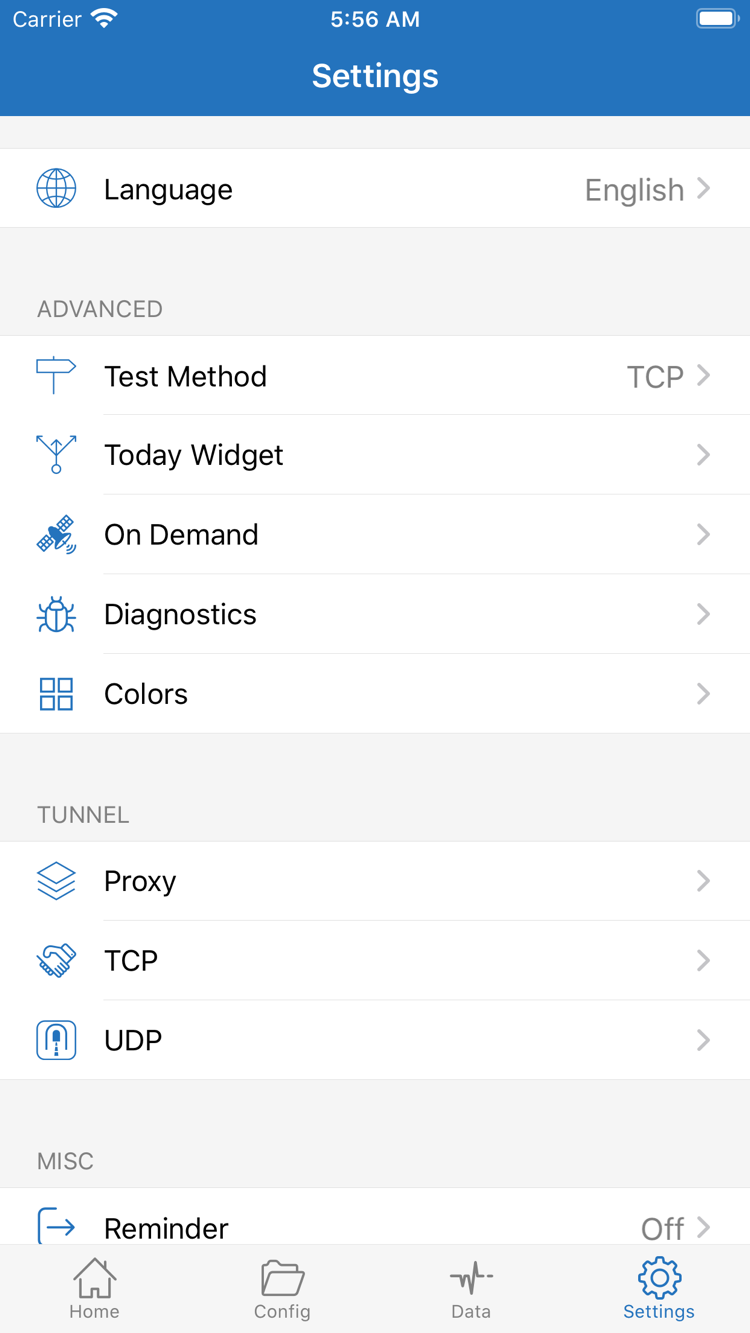
Open Settings and check Test Method first, so you understand how Connectivity Test works. If you change the method, results aren't directly comparable under the same conditions. On Demand triggers connections based on configured conditions. If the connection turns off and then comes back on, or behaves differently from your manual actions, check whether any conditions are set. For initial troubleshooting, note the original settings and temporarily rule out automatic triggers. Restore the conditions that suit your needs once the connection is stable.
For further diagnosis, use Diagnostics in Settings and record only information relevant to the current issue. Proxy, TCP, and UDP aren't general-purpose switches that fix problems when all enabled; leave them unchanged unless you have a clear reason. Before sharing diagnostic records, hide subscription links, server authentication details, and personal request content. You can describe which step failed, the mode you were using, and whether the connection stayed on without exposing your full connection details.
If you've traced the issue to the subscription or server itself, check its validity with the provider of your existing service. For rule syntax, continue to the configuration and rules reference. If you need help with interface labels in Settings, see the glossary. It's easier to verify a stable connection first and then add rules and On Demand conditions gradually than to change several advanced settings during your first connection.
Final Checks
Keep a Working Configuration Before Making Advanced Changes
Confirm that the SERVER entry, selected server, Global Routing mode, and real-world access results correspond. If you switch back to your everyday configuration, test it again; don't treat a successful first test as a substitute for checking the setup you plan to use.